Annotating a Contract PDF: Initials, Dates, and Clause Highlights
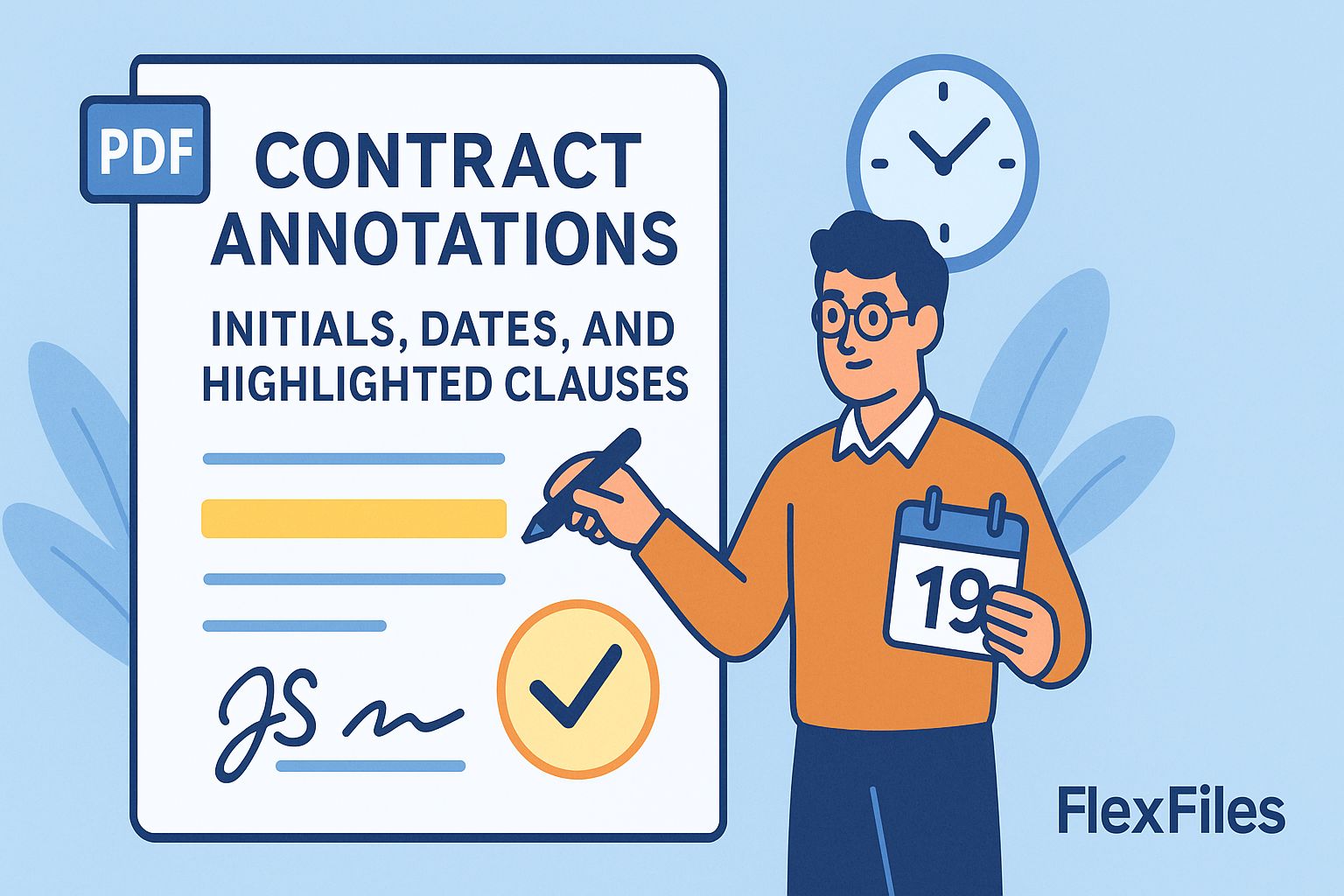
Redlining a contract by printing, marking by hand, and scanning it back in adds a step that has no reason to exist anymore — and it makes the audit trail harder to follow, not easier.
FlexFiles PDF Editor keeps clause review, initials, and dates inside the original digital file.
What a Focused Annotation Set Looks Like
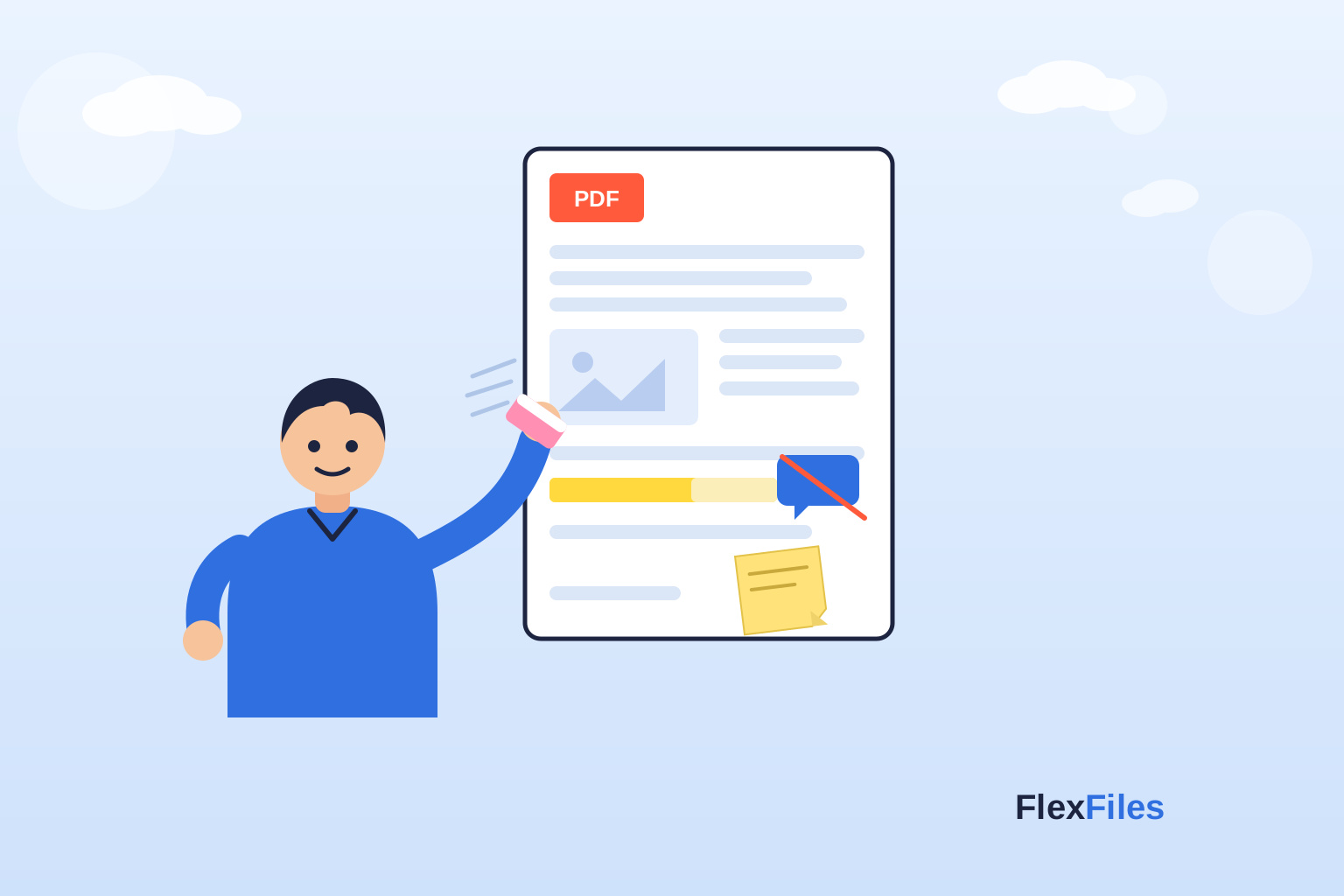
- Highlights — flag key clauses, figures, or dates for the next reviewer.
- Sticky notes — explain a proposed change or flag a question.
- Initials and dates — confirm a change on the page or clause it applies to.
- Underlines — mark a specific range or reference within a clause.
How to Annotate a Contract
- Upload the contract PDF.
- Highlight the clauses under review — one color for emphasis, a second for anything flagged as a concern.
- Add a sticky note next to each clause that needs a change, kept short and specific.
- Place initials near each confirmed change.
- Export the annotated version to send back.
Why This Beats Printing
A digital markup keeps a single source of truth — no separate paper copy that can go missing, and no scan quality loss on a signature or initial. It also keeps a cleaner trail of what changed and when.
Conclusion
Contract review shouldn't require a printer. FlexFiles keeps clause highlights, notes, and initials in the same digital file, start to finish.
When the contract is finalized and annotations are no longer needed, you can remove every highlight, note, and initial in one step with the FlexFiles Remove Annotations tool — leaving a clean, distributable PDF.