Free Draw on PDF Online — Draw on PDFs with a Mouse or Stylus—Smooth Lines, Clean Output
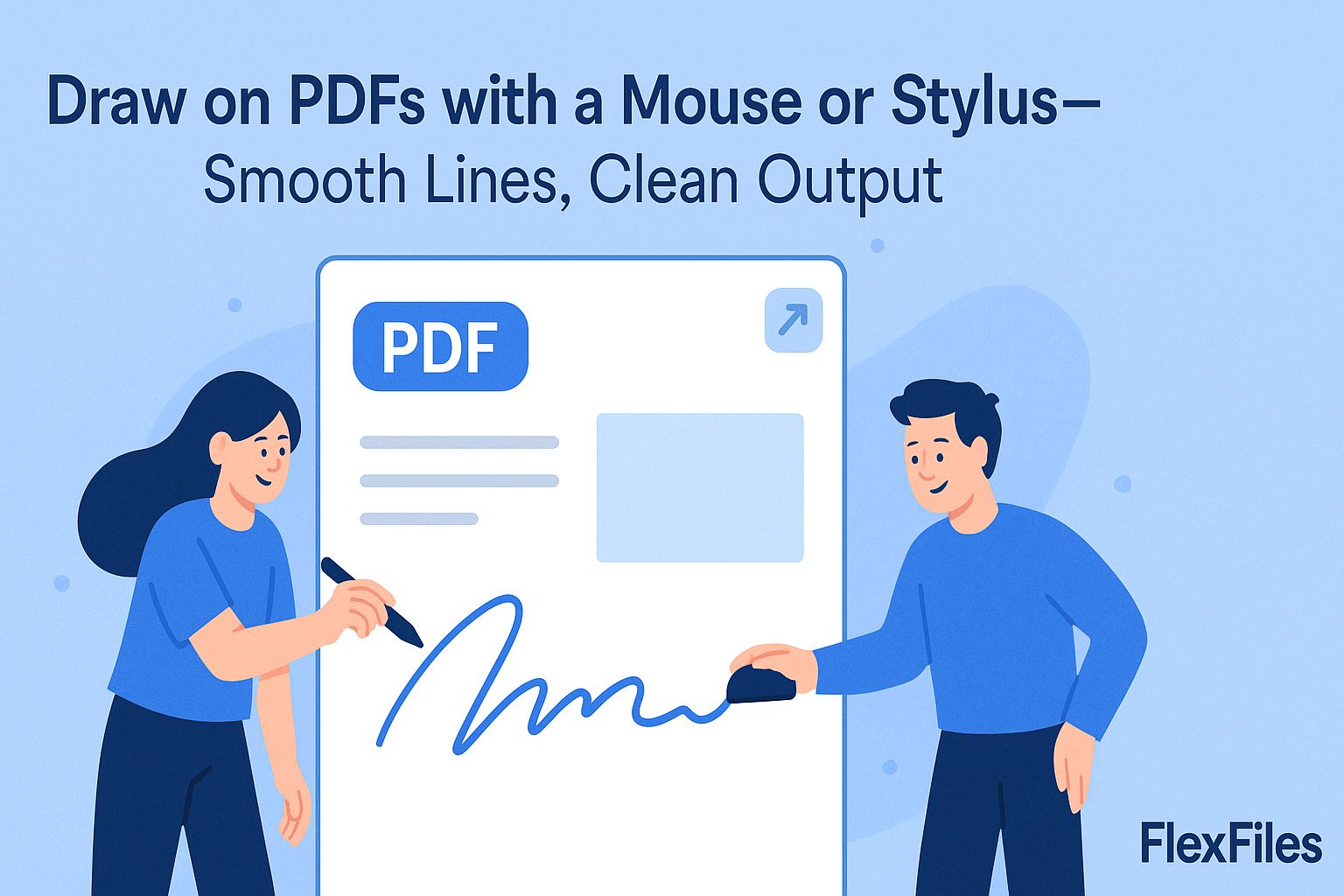
A quick arrow or a circled figure lands faster than typing out the same feedback in a comment — but only if the line actually looks intentional, not shaky.
Here's how to get clean results drawing on a PDF with FlexFiles.
When Drawing Beats Typing
- Marking a specific change on a draft.
- Sketching a rough layout idea directly on the page.
- Circling a number or figure that needs attention.
- Coaching through a document with a student or teammate.
Getting Smooth Lines With a Mouse
A mouse isn't built for freehand drawing, but zooming in helps more than most people expect — working at 150-200% zoom smooths out curves that look shaky at normal size. A stylus or trackpad will always be steadier, but this closes most of the gap.
Stroke Width and Color
Thin strokes disappear on a dense, text-heavy page — medium width holds up better. Stick to a color that reads clearly against the page background; anything too close to the existing text color defeats the point of marking it.
How to Draw on a PDF
- Upload your file to FlexFiles PDF Editor.
- Select the draw tool.
- Set stroke width, color, and opacity.
- Draw with a mouse, trackpad, or stylus.
- Export as PDF, JPG, or PNG.
Conclusion
A rough sketch communicates faster than a paragraph of comments — as long as it's legible. A few settings adjustments are usually the difference.