Handwritten Signature PDF Online — Natural, Crisp, and Secure
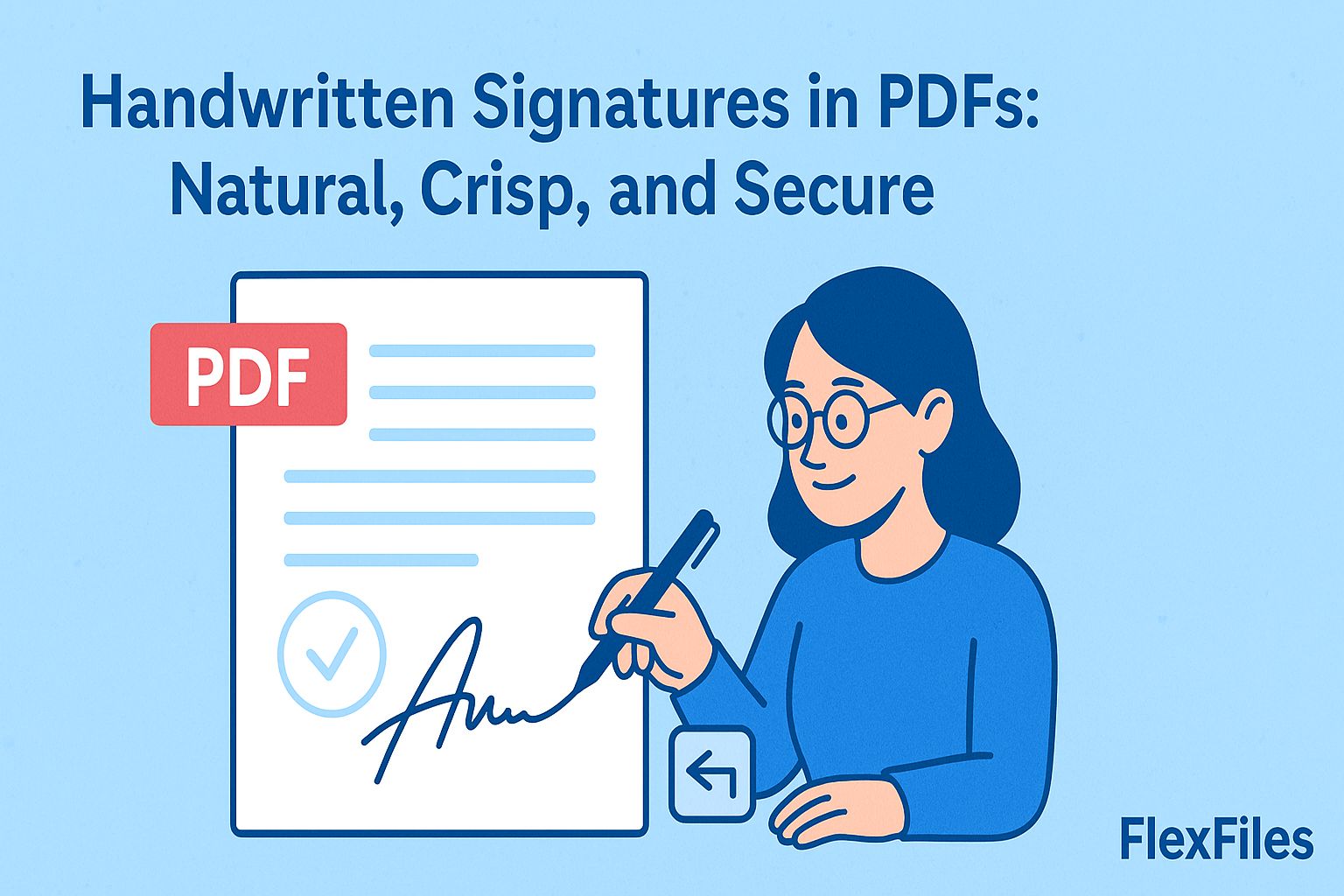
A typed name at the bottom of a form doesn't carry the same weight as an actual signature — it's a small thing, but it's the difference between looking finished and looking rushed.
FlexFiles PDF Editor lets you draw or upload a signature and place it exactly where it belongs, without printing anything.
Draw or Upload — Which One to Use
- Draw it — works best with a stylus or trackpad, and is fastest for a signature you'll reuse often.
- Upload it — sign on paper, photograph it in good light, and save it as a transparent PNG for a more natural pen look.
How to Add It
- Open FlexFiles PDF Editor and upload your file.
- Choose the signature tool.
- Draw a signature, or upload an image of one.
- Adjust color and thickness — black or dark blue reads as most professional.
- Drag it into place, using guides to align with the signature line.
- Export the signed PDF.
Getting a Clean Result
- Zoom in while drawing — 150-200% gives noticeably smoother curves with a mouse.
- If uploading, crop tightly around the ink and avoid shadows in the photo.
- Leave room for the date field next to the signature — don't let them overlap.
Where This Fits
A handwritten signature reads as more personal than a typed name, which matters for anything client-facing. For high-volume, low-stakes approvals, a typed e-signature is often faster; for anything where the human mark matters, draw or upload one instead. Follow your organization's policy for anything with compliance requirements.
Conclusion
Signing a PDF shouldn't mean printing it first. FlexFiles lets you draw or upload a signature and place it precisely, entirely in your browser.